6 releases (stable)
Uses new Rust 2024
| new 1.3.0 | May 6, 2025 |
|---|---|
| 1.2.1 | Apr 17, 2025 |
| 1.2.0 | Feb 26, 2025 |
| 1.1.0 | Jan 22, 2025 |
| 0.9.0 | Jan 2, 2025 |
#466 in Command line utilities
303 downloads per month
655KB
4K
SLoC
timr-tui
TUI to organize your time: Pomodoro, Countdown, Timer.
[t]imerCheck the time on anything you are you doing.[c]ountdownUse it for your workout, yoga session, meditation, handstand or whatever.[p]omodoroOrganize your working time to be focused all the time by following the Pomodoro Technique.
Table of Contents
Preview
(theme depends on your terminal preferences)
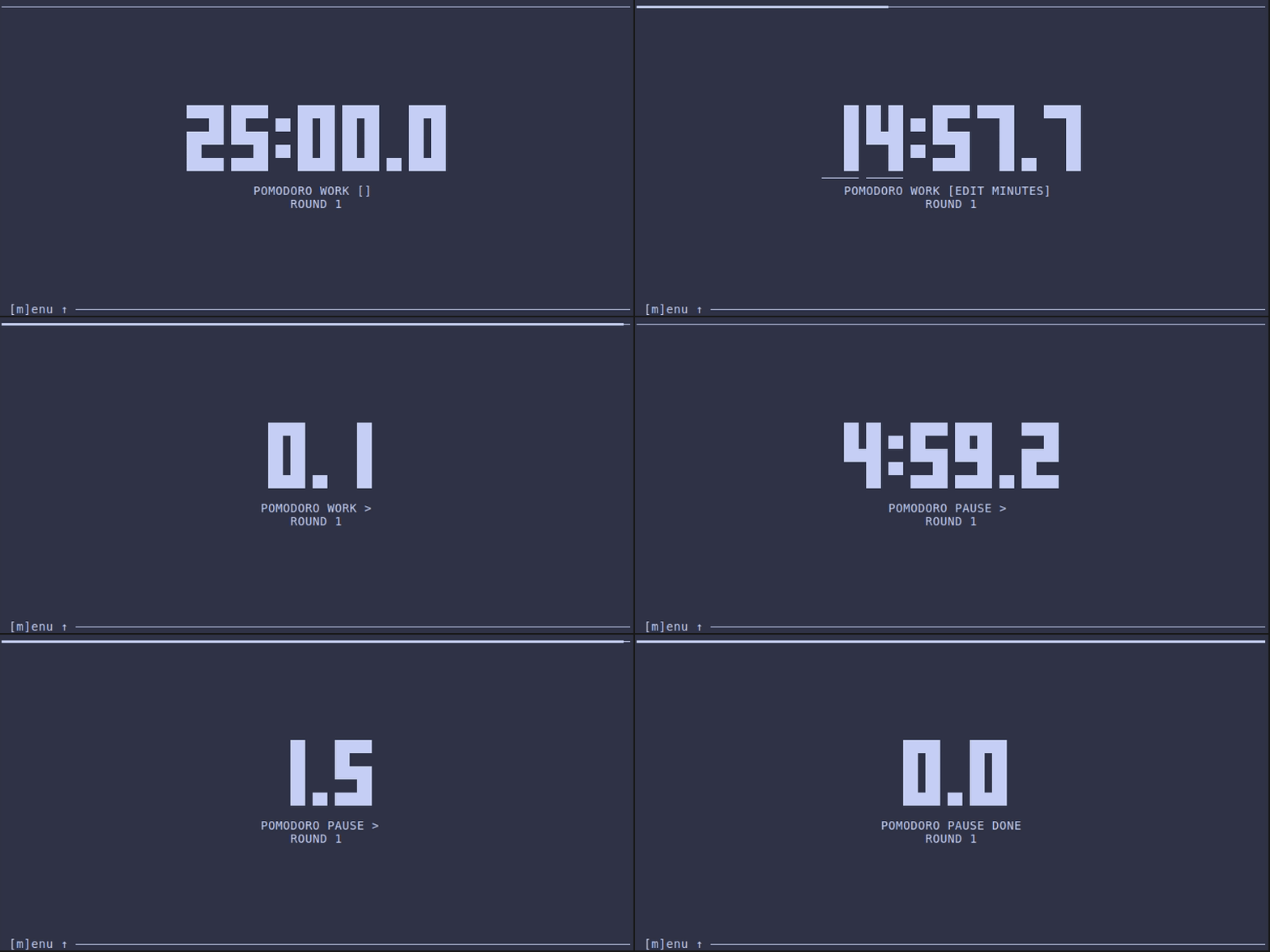
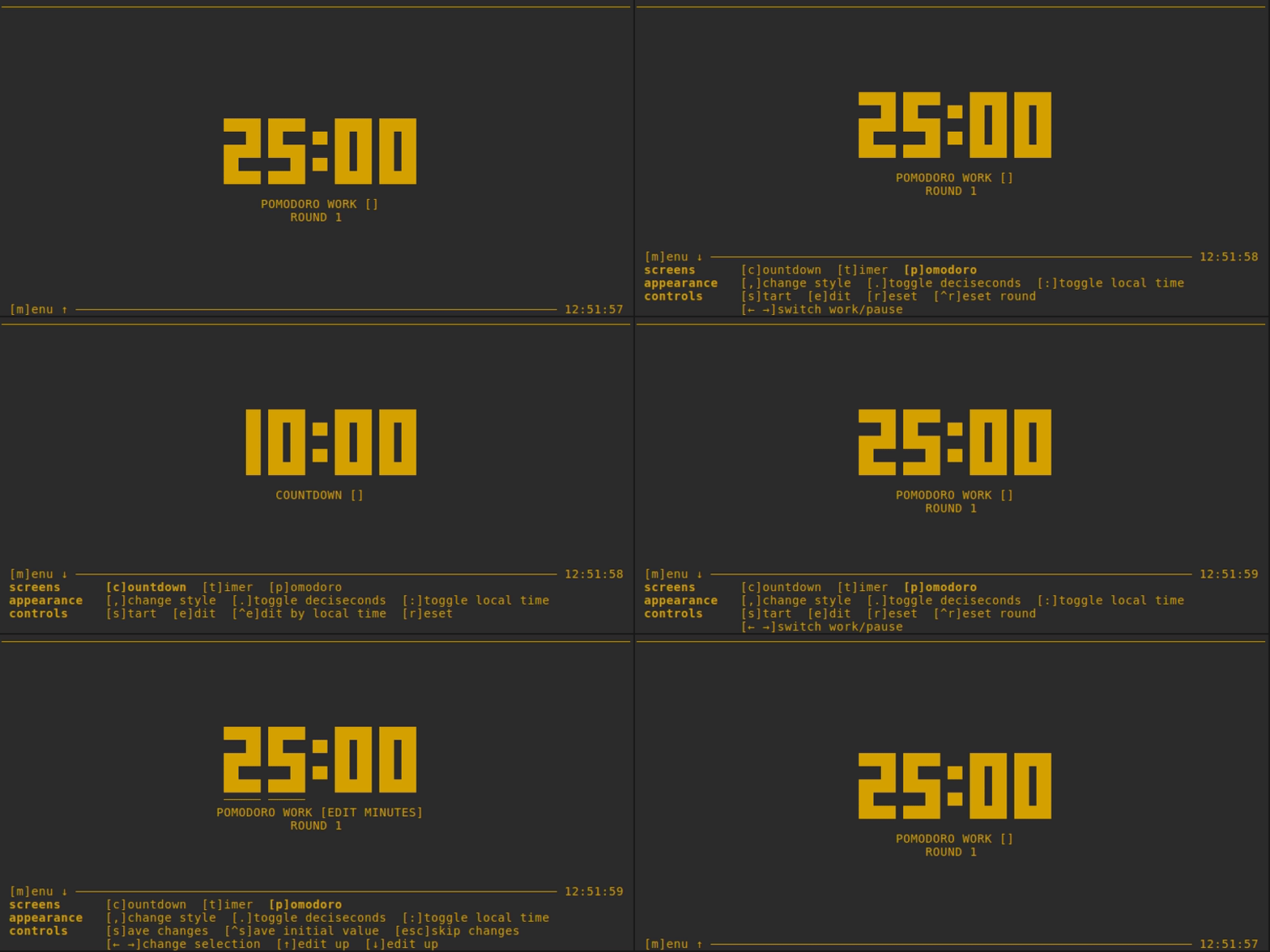
Pomodoro
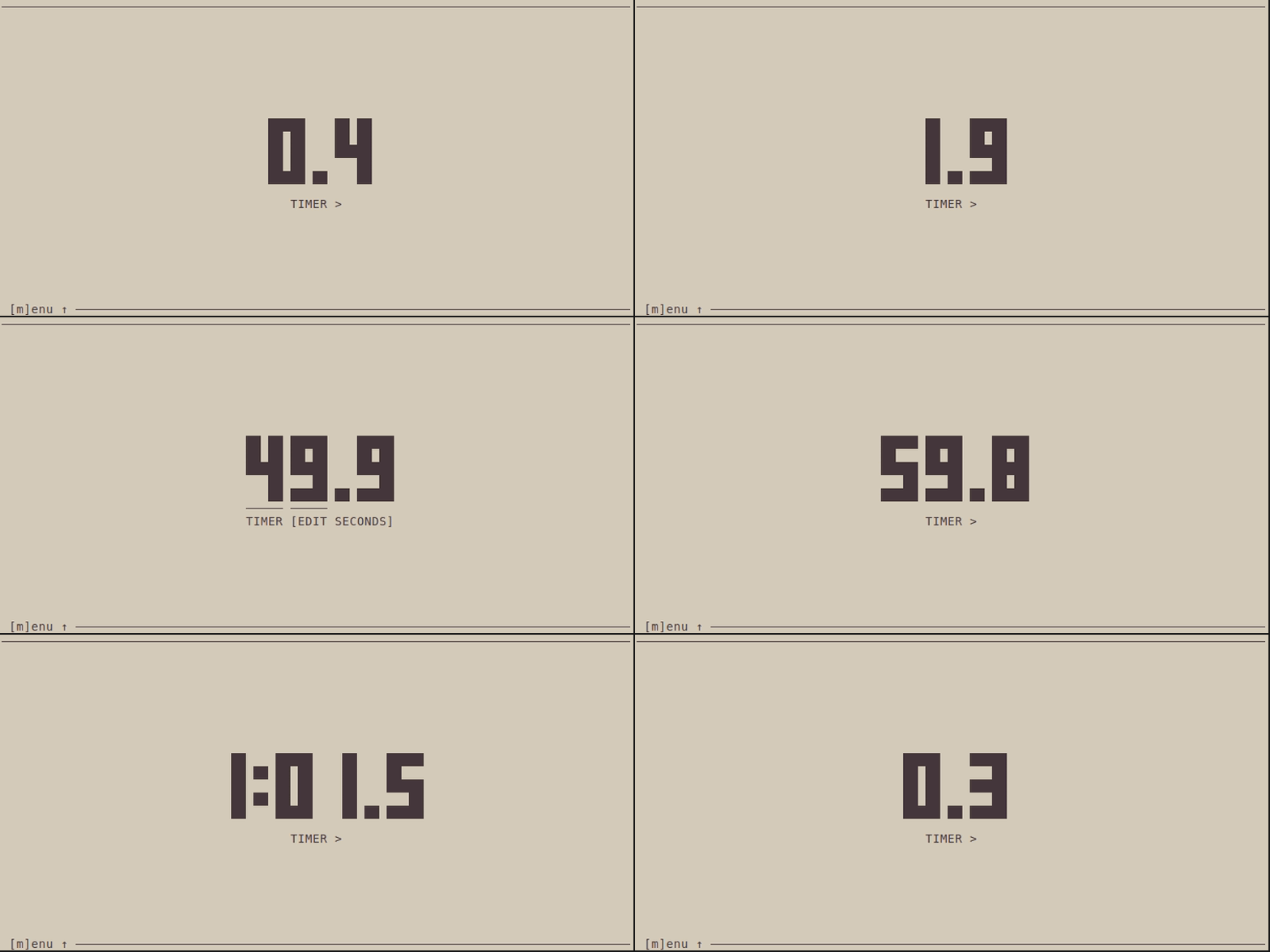
Timer
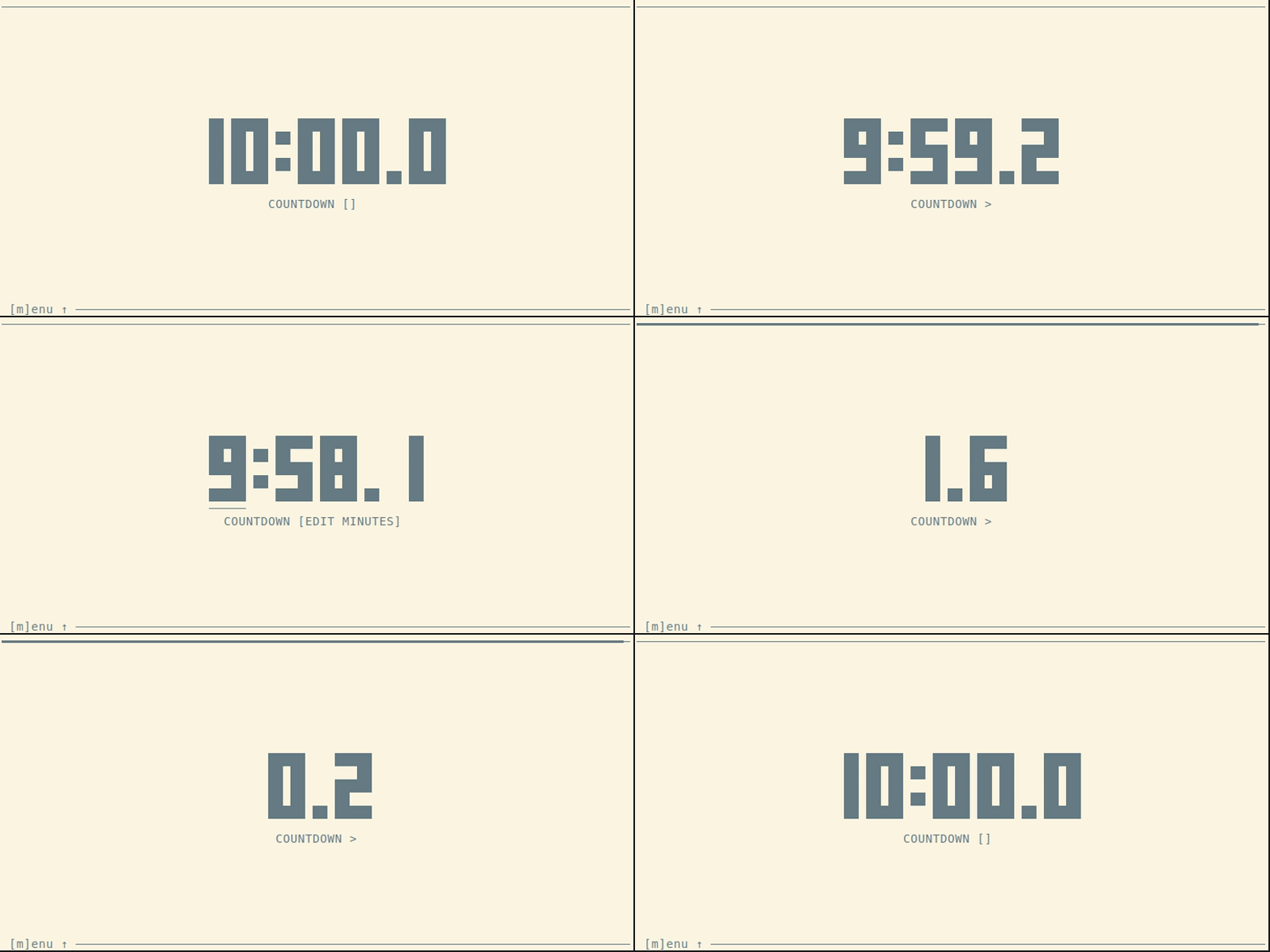
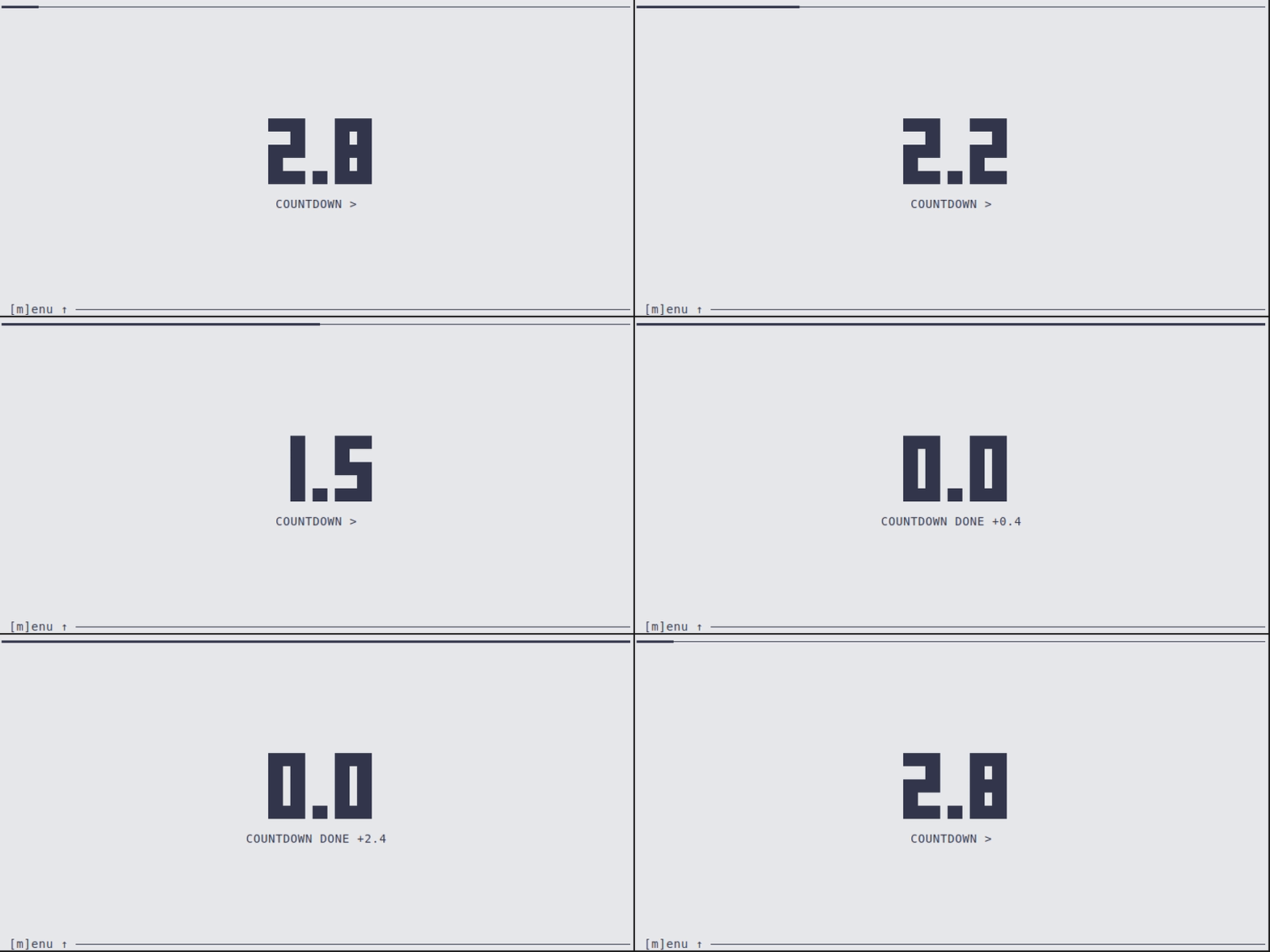
Countdown
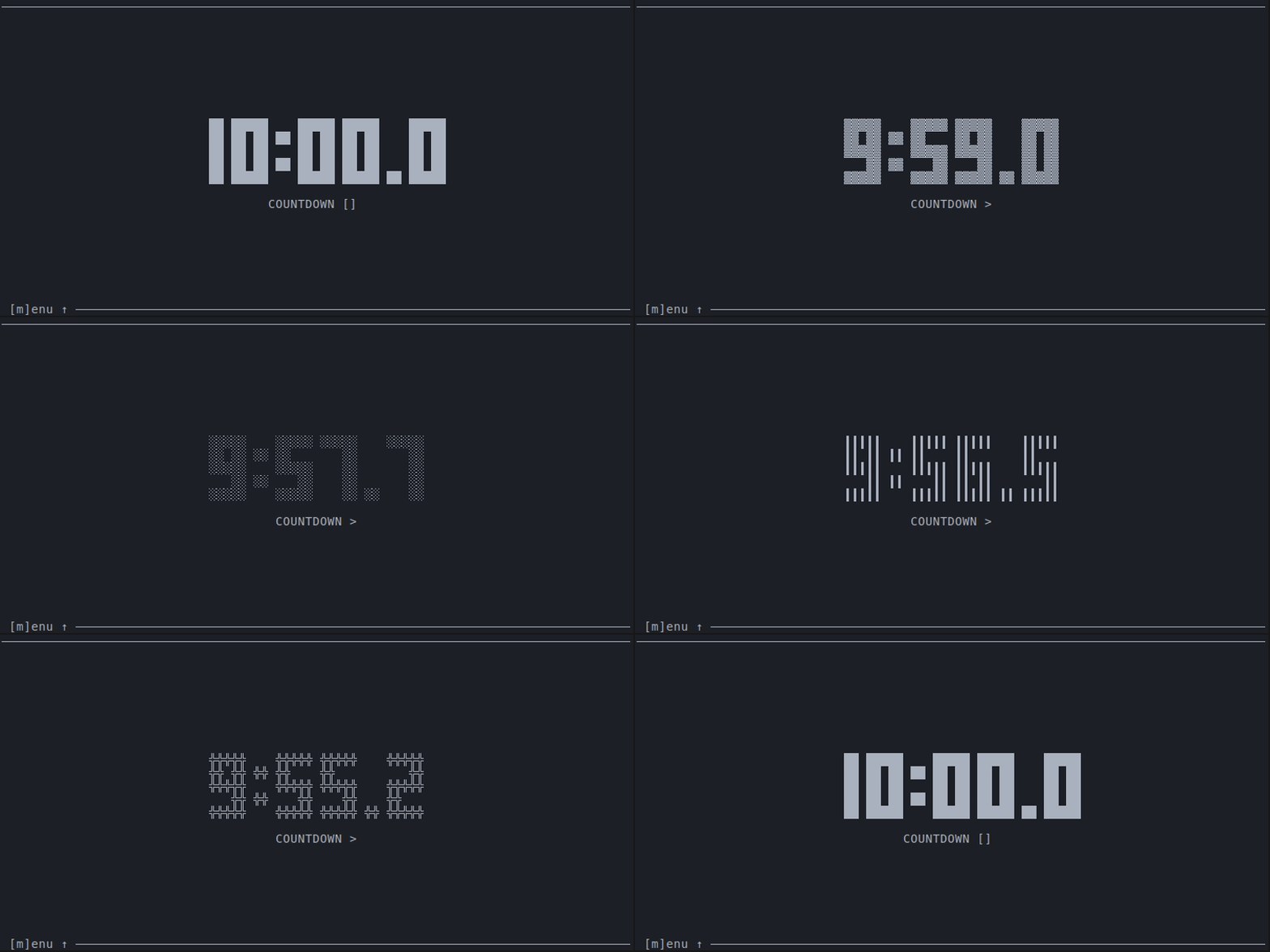
Change style
Toggle deciseconds
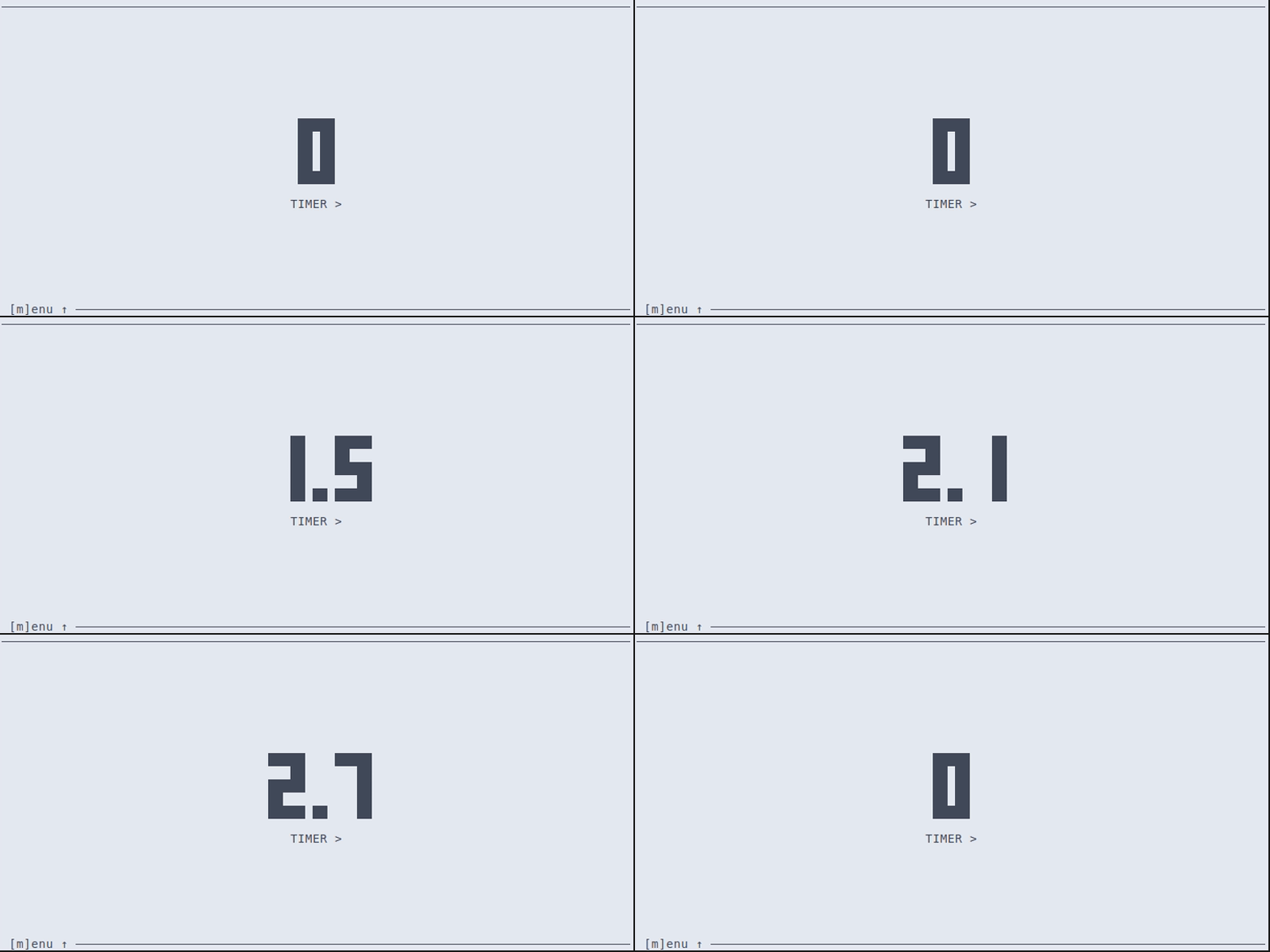
Menu
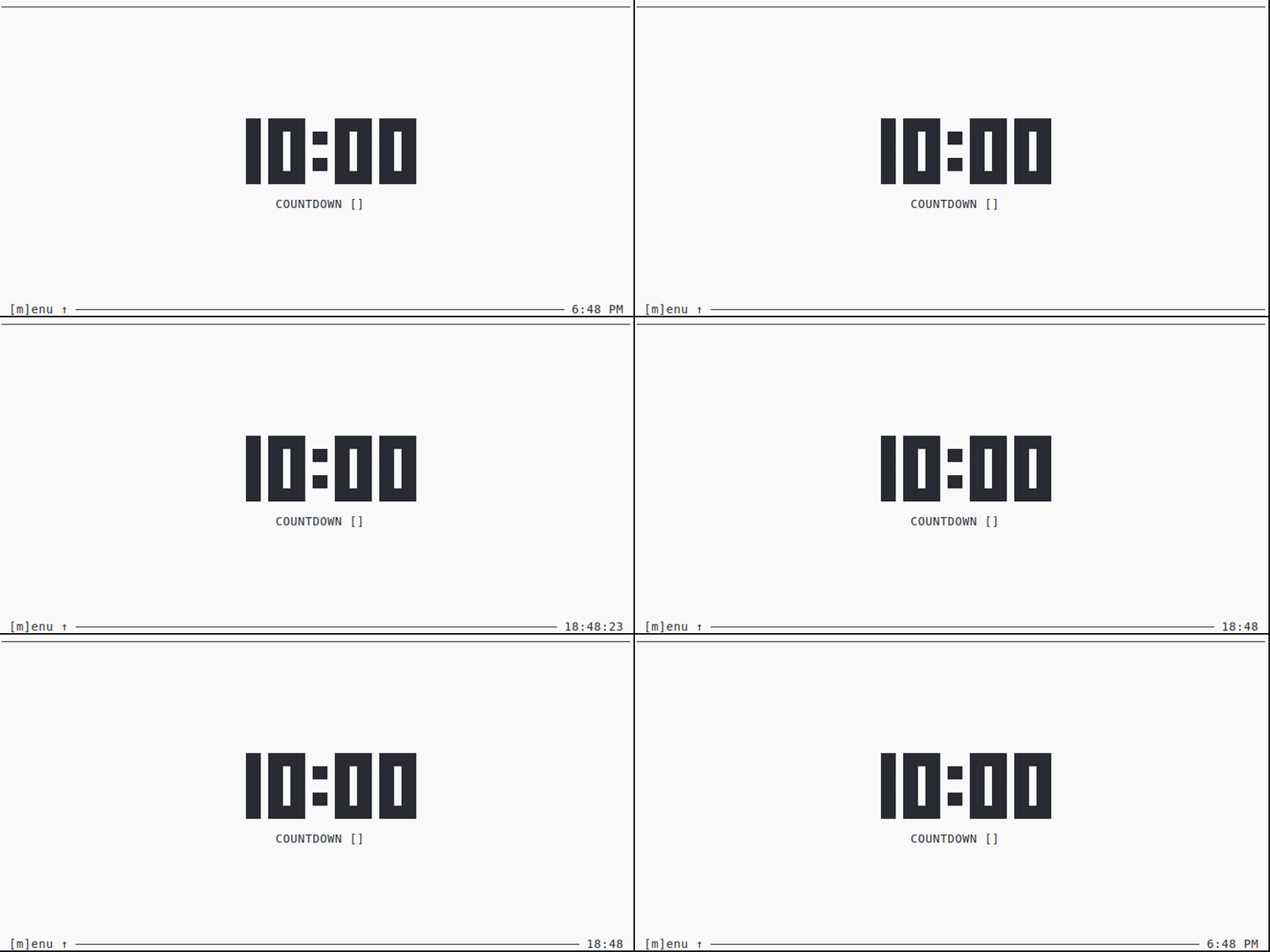
Local time (footer)
Mission Elapsed Time (MET)
CLI
timr-tui --help

Usage: timr-tui [OPTIONS]

Options:
  -c, --countdown <COUNTDOWN>        Countdown time to start from. Formats: 'ss', 'mm:ss', or 'hh:mm:ss'
  -w, --work <WORK>                  Work time to count down from. Formats: 'ss', 'mm:ss', or 'hh:mm:ss'
  -p, --pause <PAUSE>                Pause time to count down from. Formats: 'ss', 'mm:ss', or 'hh:mm:ss'
  -d, --decis                        Show deciseconds.
  -m, --mode <MODE>                  Mode to start with. [possible values: countdown, timer, pomodoro]
  -s, --style <STYLE>                Style to display time with. [possible values: full, light, medium, dark, thick, cross, braille]
      --menu                         Open the menu.
  -r, --reset                        Reset stored values to default values.
  -n, --notification <NOTIFICATION>  Toggle desktop notifications. Experimental. [possible values: on, off]
      --blink <BLINK>                Toggle blink mode to animate a clock when it reaches its finished mode. [possible values: on, off]
      --log [<LOG>]                  Directory to store log file. If not set, standard application log directory is used (check README for details).
  -h, --help                         Print help
  -V, --version                      Print version
Extra option (if --features sound is enabled by local build only):
--sound <SOUND> Path to sound file (.mp3 or .wav) to play as notification. Experimental.
Keybindings
Menu
| Key | Description |
|---|---|
| ↑ / ↓ or m | Toggle menu |
Screens
| Key | Description |
|---|---|
| p | Pomodoro |
| c | Countdown |
| t | Timer |
Controls
| Key | Description |
|---|---|
| s | start |
| r | reset |
| e | enter edit mode |
| q | quit |
In edit mode only:
| Key | Description |
|---|---|
| s | save changes |
| Esc | skip changes |
| ← or → | change selection |
| ↑ | edit to go up |
| ↓ | edit to go down |
In Pomodoro screen only
| Key | Description |
|---|---|
| ← or → | switch work/pause |
| ^r | reset round |
| ^s | save initial value |
In Countdown screen only:
| Key | Description |
|---|---|
| ^e | edit by local time |
| ^s | save initial value |
Appearance
| Key | Description |
|---|---|
| , | toggle styles |
| . | toggle deciseconds |
| : | toggle local time in footer |
Installation
Cargo
From crates.io
cargo install timr-tui
From GitHub repository
cargo install --git https://github.com/sectore/timr-tui
Arch Linux
Install from the AUR:
paru -S timr
Release binaries
Pre-built artifacts are available to download from latest GitHub release.
Development
Requirements
Nix users (recommend)
cd into root directory.
If you have direnv installed, run direnv allow once to install dependencies. In other case run nix develop.
Non Nix users
Commands
just

Available recipes:
    default               # list commands

    [build]
    build                 # build app [alias: b]

    [demo]
    demo-blink            # build demo: blink animation [alias: db]
    demo-countdown        # build demo: countdown [alias: dc]
    demo-countdown-met    # build demo: countdown + met [alias: dcm]
    demo-decis            # build demo: deciseconds [alias: dd]
    demo-local-time       # build demo: local time [alias: dlt]
    demo-menu             # build demo: menu [alias: dm]
    demo-pomodoro         # build demo: pomodoro [alias: dp]
    demo-rocket-countdown # build demo: rocket countdown [alias: drc]
    demo-style            # build demo: styles [alias: ds]
    demo-timer            # build demo: timer [alias: dt]

    [dev]
    run                      # run app [alias: r]
    run-args args            # run app with arguments. It expects arguments as a string (e.g. "-c 5:00"). [alias: ra]
    run-sound path           # run app while sound feature is enabled. It expects a path to a sound file. [alias: rs]
    run-sound-args path args # run app while sound feature is enabled by adding a path to a sound file and other arguments as string (e.g. "-c 5:00"). [alias: rsa]

    [misc]
    format                # format files [alias: f]
    lint                  # lint [alias: l]

    [test]
    test                  # run tests [alias: t]
Build
- Linux
nix build
# or for bulding w/ statically linked binaries
nix build .#linuxStatic
- Windows (cross-compilation)
nix build .#windows
Run tests
cargo test
Misc.
Persistant app state
Stored on file system:
# Linux
~/.local/state/timr-tui/data/app.data
# macOS
/Users/{user}/Library/Application Support/timr-tui/data/app.data
# Windows
C:/Users/{user}/AppData/Local/timr-tui/data/app.data
Logs
To get log output, start the app by passing --log to timr-tui. See CLI for details.
Logs will be stored in an app.log file at following locations:
# Linux
~/.local/state/timr-tui/logs/app.log
# macOS
/Users/{user}/Library/Application Support/timr-tui/logs/app.log
# `Windows`
C:/Users/{user}/AppData/Local/timr-tui/logs/app.log
Optional: You can use a custom directory by passing it via --log arg.
License
Dependencies
~19–55MB
~877K SLoC