3 releases
| 0.1.3 | Oct 17, 2024 |
|---|---|
| 0.1.2 | Oct 10, 2024 |
| 0.1.1 | Oct 10, 2024 |
#994 in Command line utilities
245KB
4K
SLoC




Quagga
quagga is a command-line utility that combines multiple text files into a single prompt suitable for Large Language Models (LLMs) like ChatGPT. It is made for programmers who need to submit code from their projects to an LLM without manually locating and copying individual files:
> quagga --include '*.js' 'README.md' --exclude 'node_modules'
The main focus of quagga is speed, thanks to its implementation in Rust, and useful defaults, such as respecting .gitignore, ignoring binary, and hidden files. It follows the Unix philosophy of doing one thing well and is designed to be used with other tools by sending the prompt to stdout and receiving file paths from stdin:
> quagga > prompt.txt
> find . -name '*.txt' | quagga
Installation
Install using Cargo
First install Rust, then run:
cargo install quagga
Homebrew
Install with Homebrew:
brew tap evgenyneu/quagga
brew install quagga
Pre-built binaries
Download pre-built binaries from the GitHub Releases page.
- Download the appropriate version for your platform.
- Move the binary to a location in your PATH.
Usage
quagga [OPTIONS] [DIRECTORY]
DIRECTORY: The root directory to search for files. Default is current directory ..
Output
By default, quagga prints the combined prompt to stdout. Alternatively, you can save the prompt to a file or copy it to the clipboard.
Save prompt to file
quagga --output prompt.txt
This command saves the prompt to prompt.txt. If the output exceeds the --max-part-size CHARS limit, it will be divided into parts (see the Parts section). Each part is stored in a separate file with a .XXX suffix appended to the output file name, such as prompt.txt.001, prompt.txt.002, etc.
Additionally, you can add a timestamp to the output file name using the {TIME} or {TIME_UTC} tags:
quagga --output {TIME}_prompt.txt
This command creates a file with a timestamp in the format YYYY-mm-DD_HH-MM-SS_prompt.txt.
Copy prompt to clipboard
quagga --clipboard
This command copies the combined prompt to the clipboard instead of printing it to stdout. If the output exceeds the --max-part-size CHARS limit, it will be divided into parts. Each part will be copied to the clipboard separately, and you'll be prompted to press Enter to copy the next part.
Examples
Combine markdown files and copy to clipboard
quagga --include '*.md' --clipboard
Combines all Markdown files in the current directory and copies the result to the clipboard.
Include specific file types and exclude directories
quagga --include '*.{js,ts}' '*test*' --exclude node_modules dist
Includes JavaScript, TypeScript, and test files while excluding node_modules and dist directories.
Use a custom template
quagga --template prompt.md --include '*.txt'
Uses a template to customize the prompt text (see Templates section for details).
Include only files that contain specific text
quagga --contain todo fixthis -- ~/code/myapp
Includes only files that contain the words 'todo' or 'fixthis', look in the ~/code/myapp directory. Notice the use of -- to separate options from the directory path.
Pipe file paths from another program
find . -name '*.txt' | quagga
cat file_list.txt | quagga
Pipes file paths from another program or a text file into quagga instead of searching the directory.
Get the full list of options
quagga --help
List files
quagga provides a quick way to see the list of files that would be included in the prompt without combining them.
Show file paths
quagga --paths
This command shows the file paths:
./Cargo.toml
./README.md
./src/main.rs
./src/processor.rs
Show file sizes
quagga --file-sizes
Similar to --paths but shows the size of each file:
[29.58 KB] ./src/template/split.rs
[13.51 KB] ./src/info/tree.rs
[12.92 KB] ./tests/integration_test.rs
Show file tree
quagga --tree
Displays file paths in an ASCII tree format:
.
├── src
│   ├── main.rs
│   └── processor.rs
├── Cargo.toml
└── README.md
Show total file size
quagga --size
Displays the total size of the files:
10.2 KB
Templates
quagga uses templates to format the combined output of your files. Templates allow you to define how the output is structured, including headers, footers, placeholders for file content, as well as providing instructions for an LLM. By default, it applies a built-in template, but you can customize this to suit your needs. The template is self-documenting and can be found in templates/default.md.
Create a custom template
Use the --copy-template option to generate a default template file .quagga_template in the current directory:
quagga --copy-template
You can then customize the template and it will be automatically used by quagga when present in the current directory (no need to specify it with --template option).
Template locations
quagga looks for a template in the following order:
- A custom template file specified with the
--template <PATH>option. - A
.quagga_templatefile in the current directory. - A
.quagga_templatefile in your home directory. - If none of the above are found, Quagga uses its built-in default template.
You can ask the program to ignore .quagga_template files by using the --no-quagga-template option.
Filtering files with .quagga_ignore
An alternative (and often more convenient) way to filter files is to use a .quagga_ignore file instead of the --include and --exclude command-line options. The .quagga_ignore has the same format as .gitignore and can be placed in the project and home directories:
# Exclude everything
*

# Include Rust test files
!tests/
!tests/**/*.rs
In this example, we only include *.rs test files by using the un-ignore ! syntax. By default, quagga looks for .quagga_ignore files, but you can disable this behavior with the --no-quagga-ignore option.
Defaults
quagga uses the following defaults that can be overridden with command-line options:
- Respects gitignore files (disable with
--no-gitignore):- Standard:
.ignore,.gitignore,.git/info/exclude. - Gitignore files from parent directories are respected.
- Global ignore file from
core.excludesFileoption in$HOME/.gitconfigfile. If not set, then$XDG_CONFIG_HOME/git/ignoreis used. If$XDG_CONFIG_HOMEis not set, then$HOME/.config/git/ignoreis used.
- Standard:
- Uses
.quagga_ignorefiles from the project and home directories written in the same format as gitignore (disable with--no-quagga-ignore). - Ignores binary files (enable with
--binary). Files are considered binary if they contain null bytes or invalid UTF-8 characters. - Ignores hidden files (enable with
--hidden). - Ignores files larger than 300 KB (change with
--max-filesize BYTES). - Symbolic links are not followed (enable with
--follow-links).
Parts
quagga splits the prompt into multiple parts if it's larger than --max-part-size CHARS. This is needed because LLMs have limits on the size of the prompt you can submit. Each part has a header, footer, and a pending message, which instructs the LLM to wait until you submit all parts. Rather than locating the parts manually in the output, a quicker way is to use the --output PATH option, which automatically creates separate files for all parts (prompt.txt.001, prompt.txt.002, etc.). Alternatively, you can use the --clipboard option, which will copy each part to the clipboard separately and prompt you to press Enter to copy the next part.
LLM context window
LLMs have limited context windows. For example, GPT-4o's context window is 128K tokens, with one token being about 4 characters on average. Even though you can submit all your project code in multiple parts, an LLM like GPT-4o will only "remember" the last 128K tokens in the session. Quality of responses will also degrade well before reaching the context window size, so it's recommended to keep the prompt as small as possible by submitting only the relevant parts of the code or asking the LLM to summarize blocks of code.
Development
See docs/development.md for instructions on how to set up the development environment.
Contributing
See contributing guidelines in CONTRIBUTING.md.
What's Quagga?
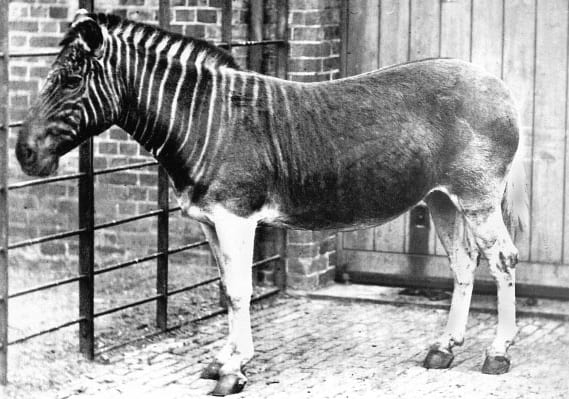
The quagga is an extinct subspecies of the plains zebra that lived in South Africa until it was hunted to extinction in the late 19th century. This is the only known photograph of a living quagga, taken at the London Zoo in 1870 by Frederick York. Source: Wikimedia Commons.

Alternative solutions
Here are some great programs from other developers that offer similar functionality:
- Cursor: AI code editor based on VS Code.
- simonw/files-to-prompt
- mufeedvh/code2prompt
- banagale/FileKitty
Feedback is welcome
If you need help or notice a bug, feel free to create an issue ticket. We will be happy to help. :D
The unlicense
This work is in public domain.
Dependencies
~6–19MB
~276K SLoC